
Creating an Invoice
Use the following process to send an Invoice through Stax Pay.
-
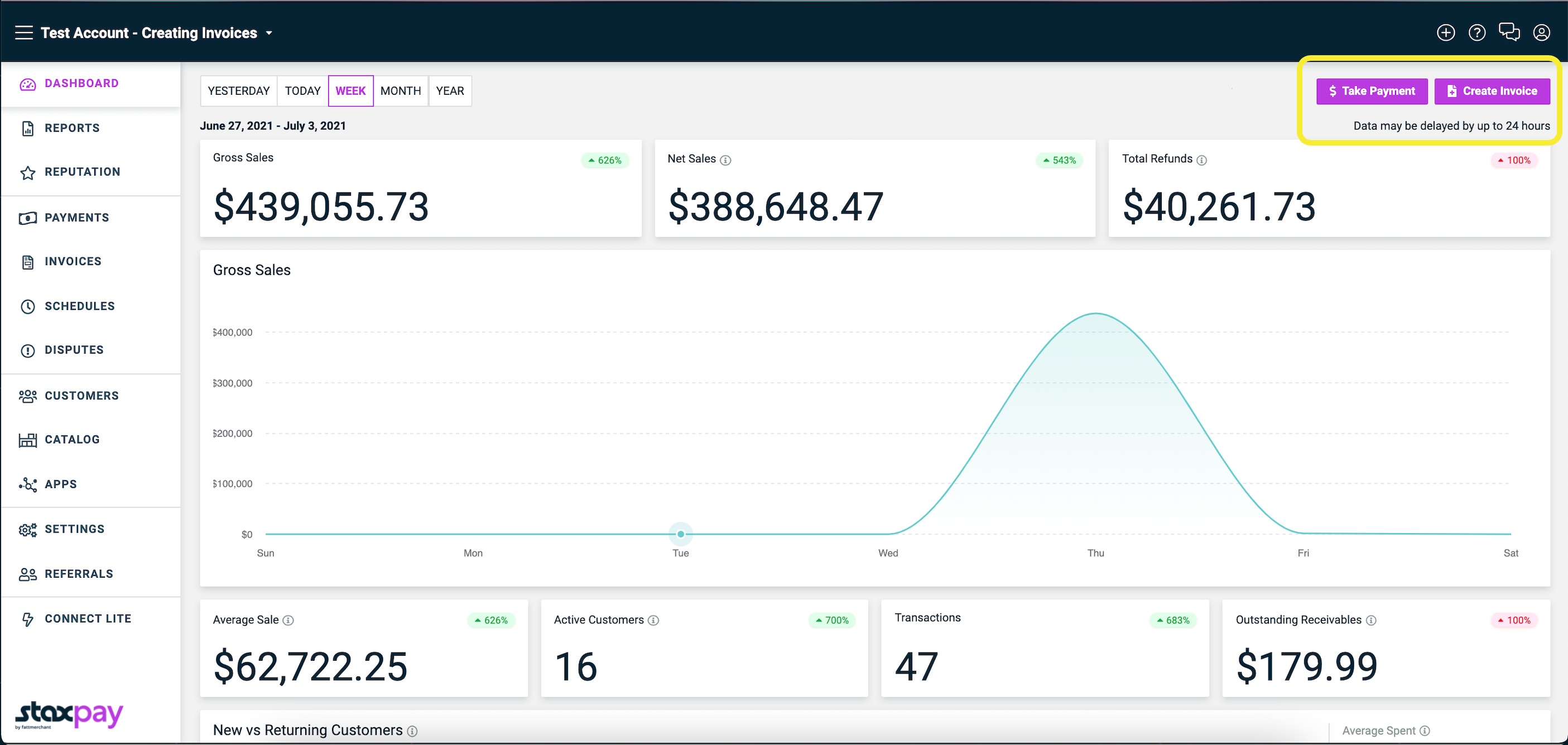
On the Dashboard, click Create Invoice in the upper right-hand corner.
-
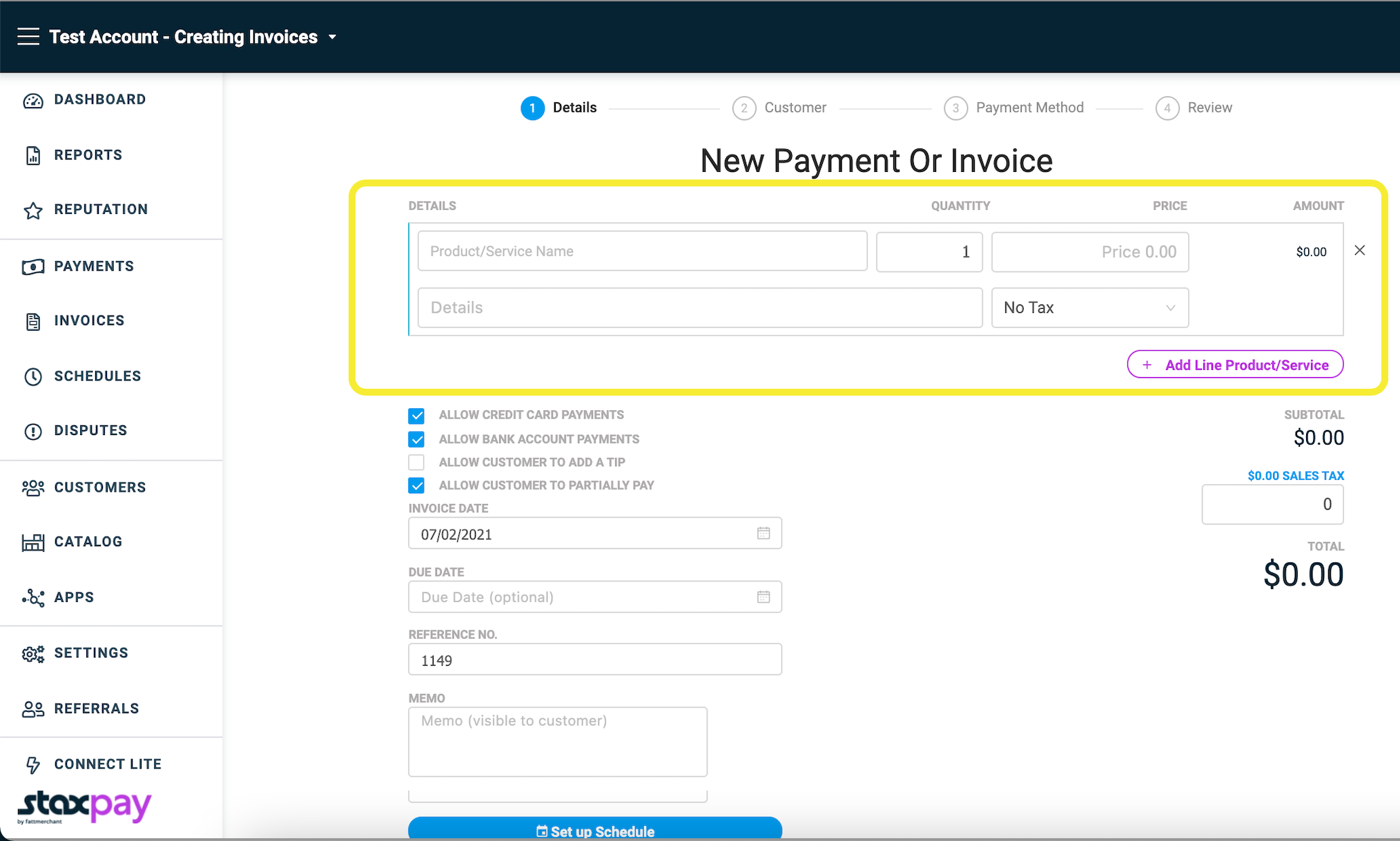
Choose your catalog item or enter the price amount - the price is the only required field.
-
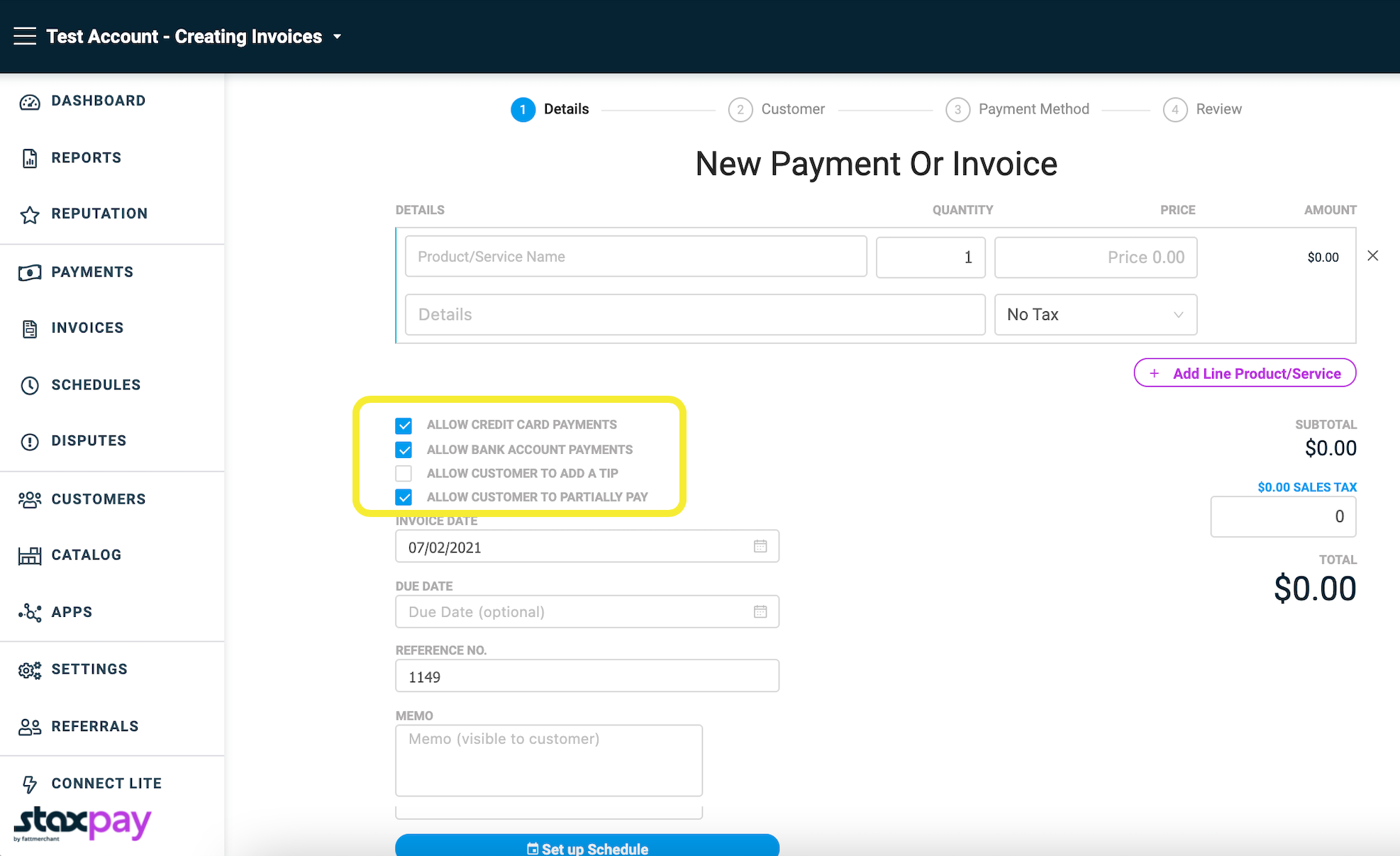
If you would like to offer the ability for your customer to pay by credit card or bank, add a tip, or partially pay while paying their invoice, select any of the options to enable.
-
Click Continue.
-
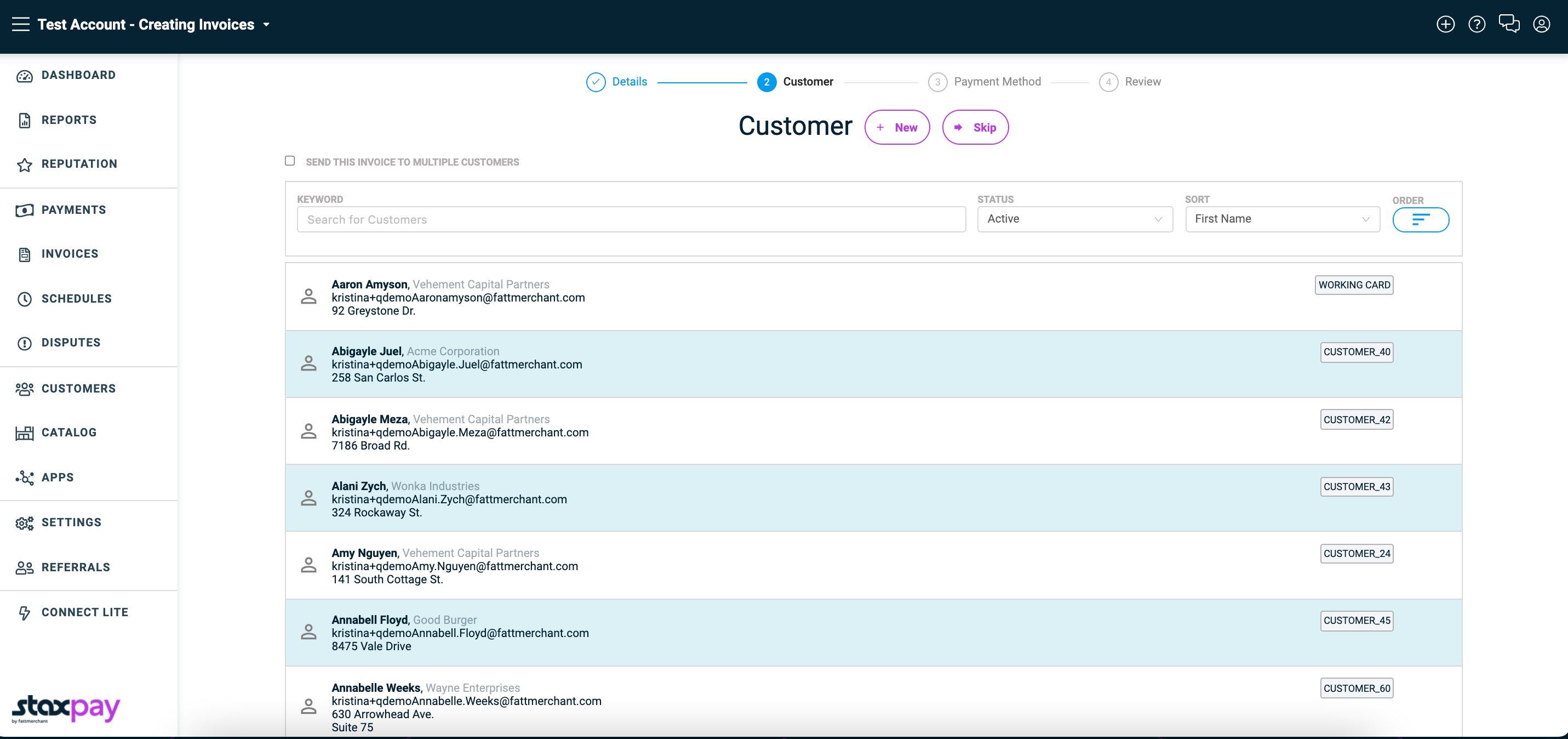
Select an existing customer or add a new customer.
-
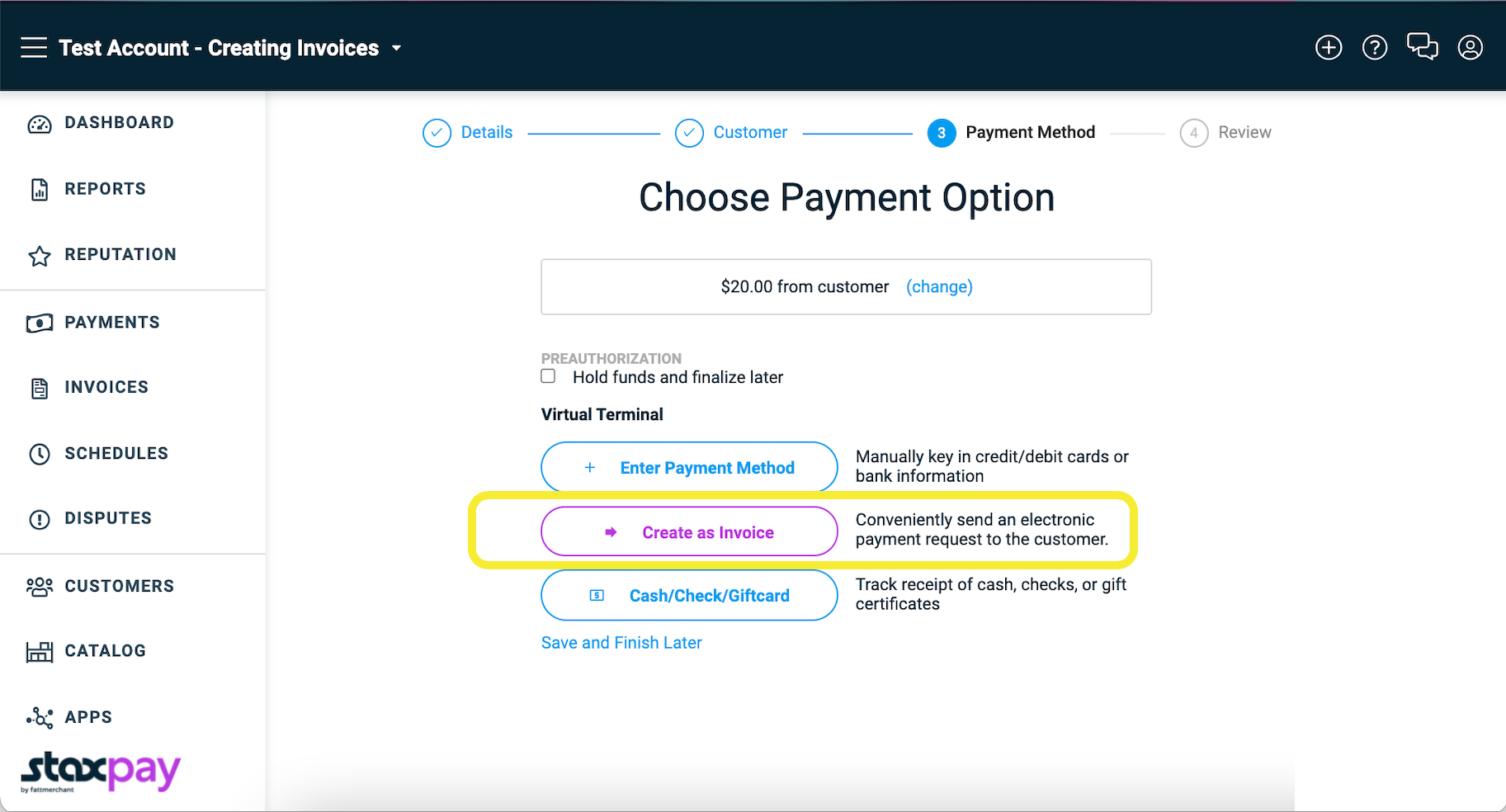
Select Create as Invoice.
-
Review the Invoice and select Send. You have the option to email or send the invoice via SMS text message.
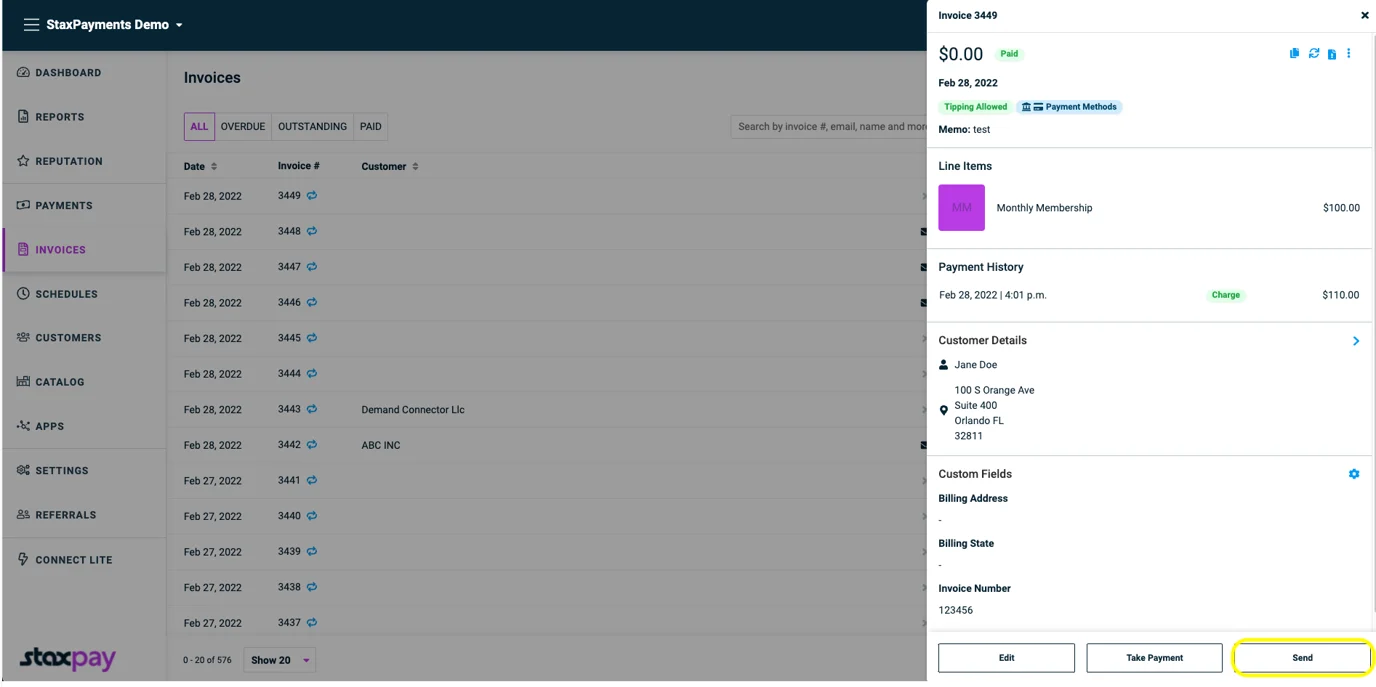
*If you choose not to send it immediately, your invoice will be saved as a draft and listed under the Invoices tab. You can return to the Invoices page anytime to view all invoices.
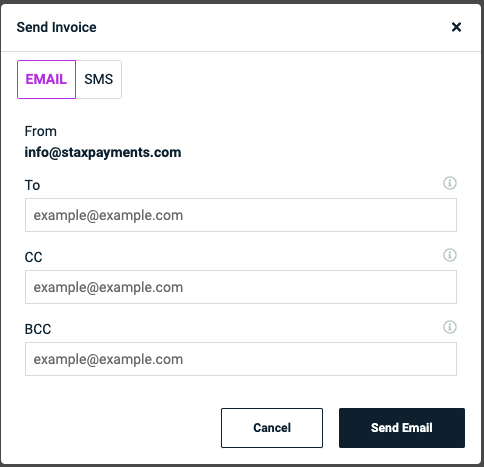
Once the invoice is sent, your customer will receive a link to enter their payment information and pay right away.
Note: You also can further enhance the branding of your invoices with Advanced Customization
API Calls
POST Create an Invoice →Updated about 1 month ago