
Updating your Catalog Inventory
Easily set up your catalog with in-stock inventory that syncs across all of your devices - no matter where you login from, your desktop or your Stax Pay mobile app, your inventory counts will be up to date.
- To set up inventory on a catalog item, you can simply update the item from the main catalog screen, select new or click an existing item.
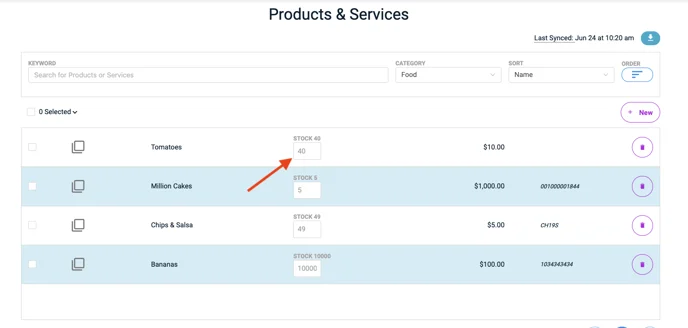
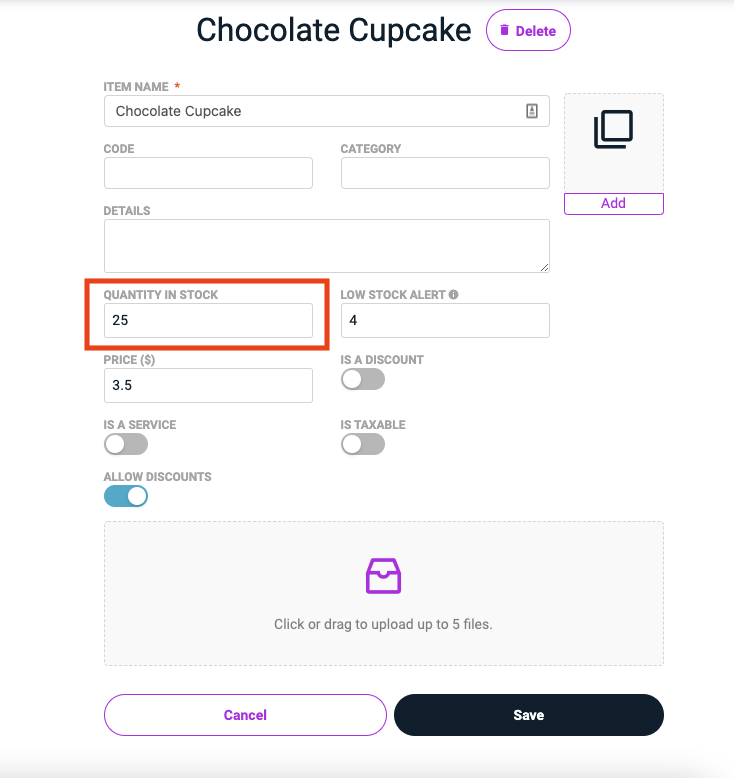
When setting up a new item or editing an existing item, you can update the Quantity in Stock with the count of in-stock items. This number will automatically update upon each successful payment made that includes this item in the transaction.
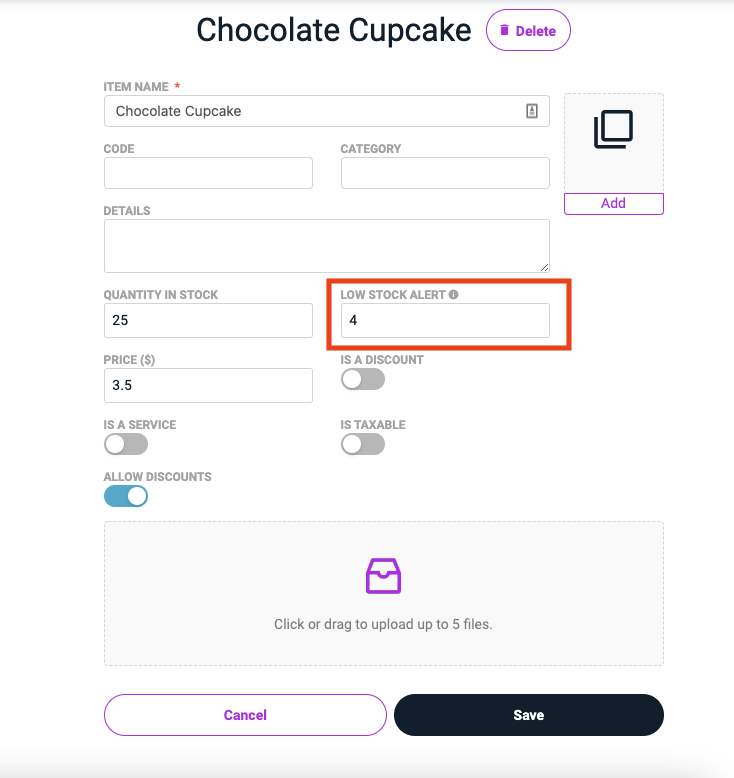
You also have the option to set a low stock alert - when stock of the item falls below the set threshold, a pop up will show to let you know to order or purchase more product. Note that the Low Stock Alert value cannot exceed the Quantity in Stock.
Additionally, if you ever need to reconcile a transaction, simply input the item and zero out the amount to remove an item from inventory without charging a price.
API Quick Links
Updated about 1 month ago