
Creating User Accounts
Once logged in, you can manage users as well as add new users.
First Time Login
You will have been provided a URL along with a username and temporary password. When you first log in, you will be prompted to change your password and provide a security question.
-
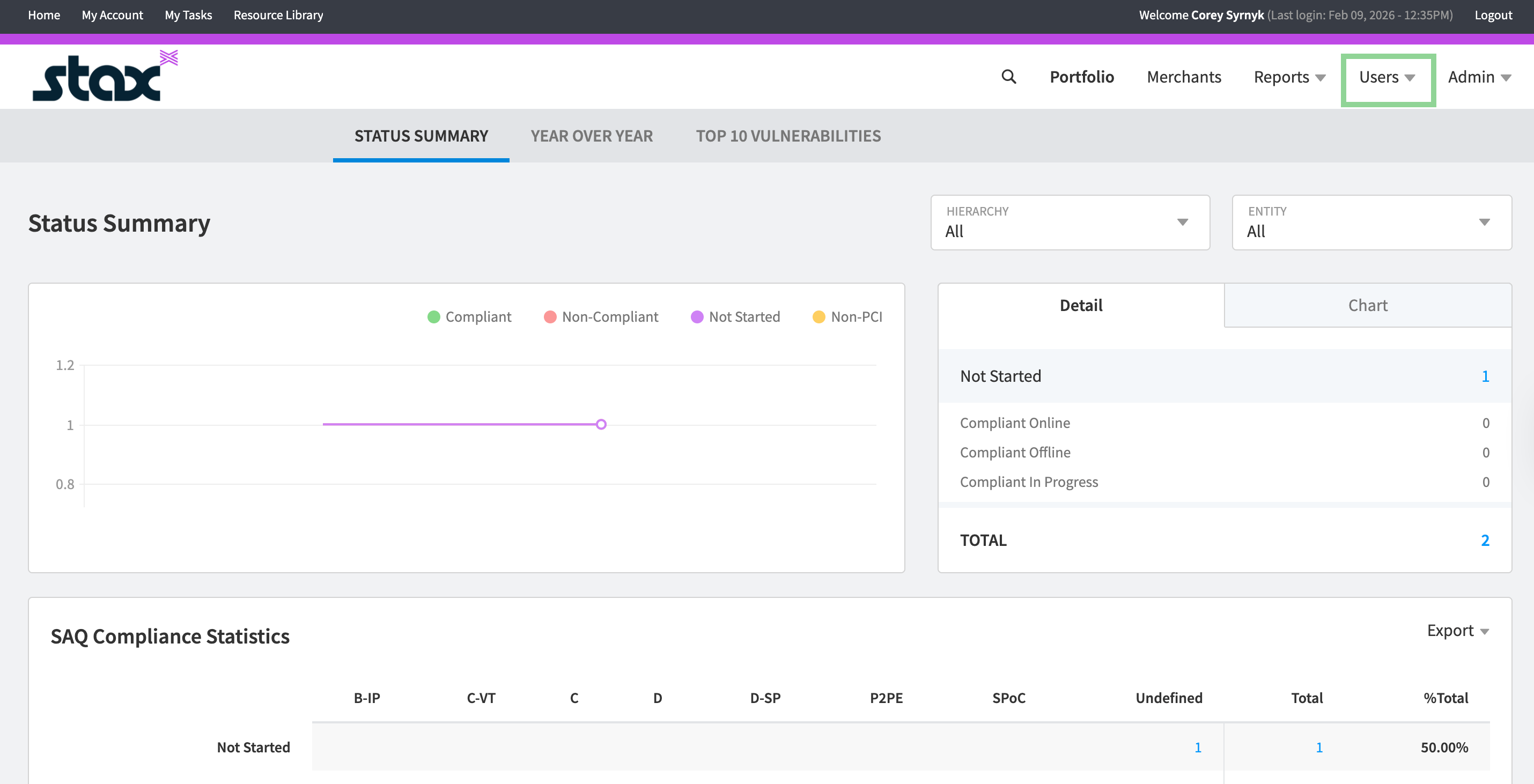
On the main page, click Users in the top right corner.
-
Then click Manage Users.
-
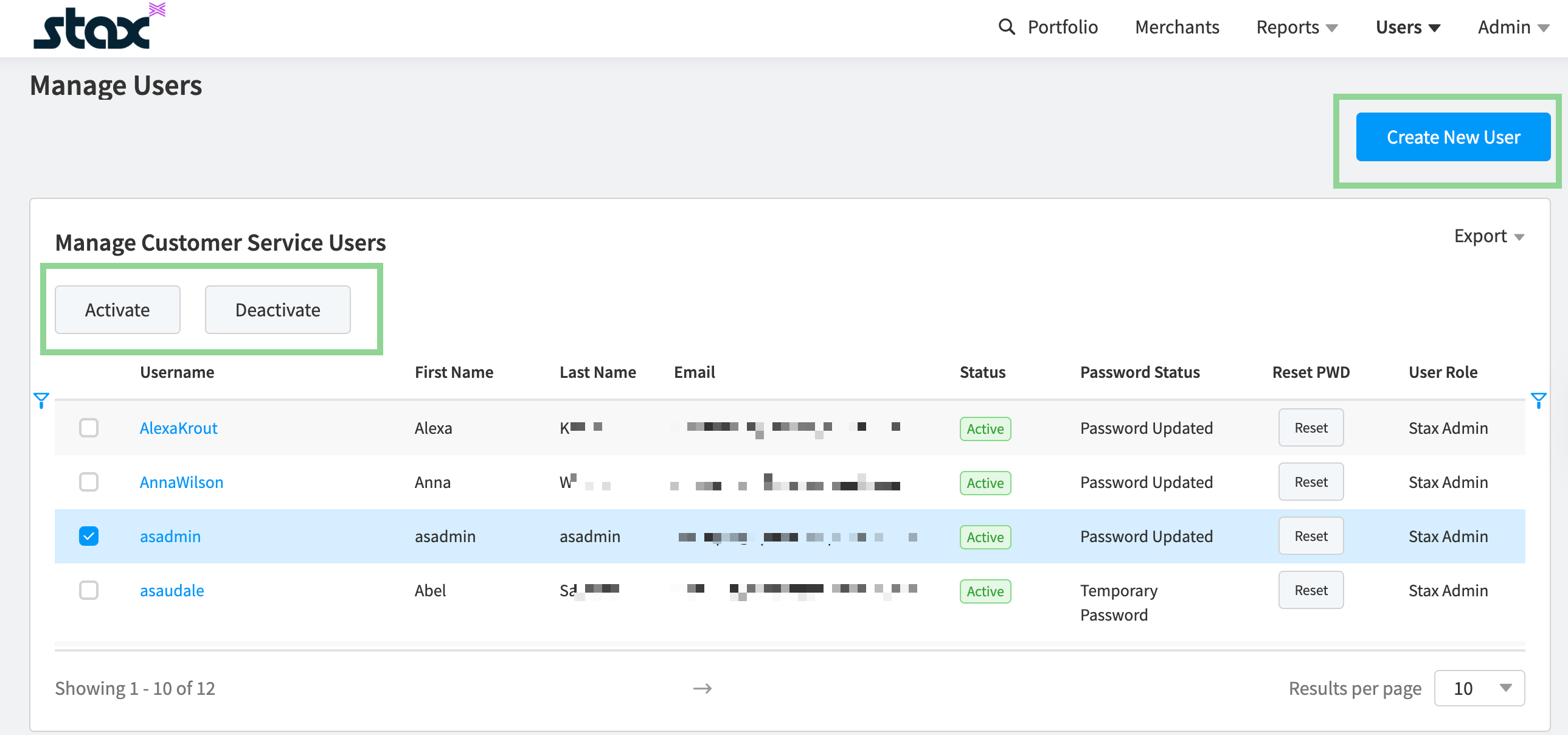
From the Users page, you can select a user and activate or deactivate their account, or reset their password.
-
Click Create New User.
-
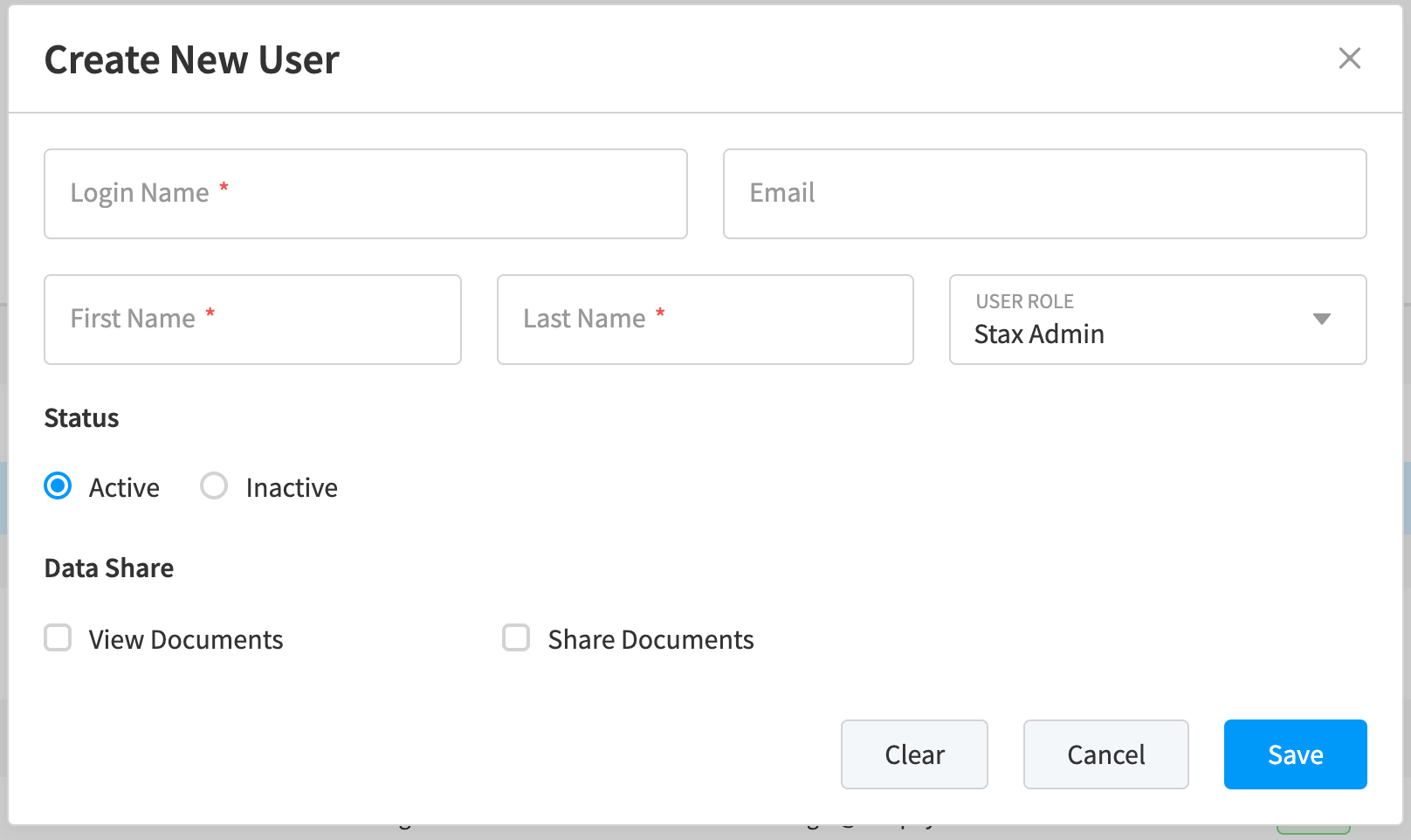
Enter the new user's information. You can set whether the user is active or deactivated to start. Select a user role. See User Roles for additional information.
-
** Note** you can only add Secondary and Read-Only users. Primary users are assigned by Stax.
If you need to change your Primary User account, please contact Stax Support.
-
Select an option for the ability to view and/or share documents.
Adding Users to Merchant accounts
You can add secondary and read-only users to merchant accounts by using the site jumping feature to access the merchant account and add a user from their site.
- Select a merchant and click the Site Jump option. See Site Jump to a Merchant portal for more information. You must have an Admin user access account.
- From the merchant's site, complete the steps above to add a Secondary or Read-Only user.
A Merchant/ Partner can only have one primary user. They can have any number of secondary or read-only users.
Updated about 1 month ago