
Terminal Troubleshooting
This guide helps to resolve any issues that you may encounter with your QD terminal. Please attempt these before contacting support.
This section covers common connectivity and power issues.
Level 1: Connectivity / Communication (Comms) Error
Check internet connectivity in the status bar
- Connect to your preferred internet connection type:
- QD2 = WiFi
- QD4 = WiFi or Ethernet
- Check the status bar at the top of the terminal screen:
- The WiFi symbol is three curved lines emitting outward from one dot.
- The Ethernet symbol is three dots bookended by outward-facing arrows.
Check internet connectivity with terminal self-check
- Navigate to the home screen.
- Select Settings.
- Select Self-Check.
- Select Network.
- Select either WiFi Network or Ethernet Network, depending on which you want to check.
- The check will result in either success or failure.
Check internet connectivity with a ping test
Note: Instead of Steps 2-7, you can also find your IP address at whatsmyip.org
- Navigate to the home screen.
- Select Settings.
- Select Self-Check.
- Select Network.
- Select WIFI Network.
- Select Test WIFI.
- Write down both the IP Address and the public IP Address (if there is one).
- Click back twice (left arrow on the bottom of the terminal).
- Select Advance.
- Select PingTool.
- Input the IP Address.
- Select Ping.
- If the Ping Result shows a few lines of data, the Ping Test was successful.
- If the Ping Result shows the word timeout, the Ping Test was unsuccessful.
WiFi works but Ethernet does not (QD4 only)
- Ensure the Ethernet cords are plugged in properly and securely
- Plug one end into an Ethernet port on the wall, router, or switch.
- Plug the other end into the terminal's Ethernet port.
- Confirm the port is glowing green; if not, the port has an issue, and you'll need to replace the terminal.
- Try a different Ethernet cord.
Power
Stuck in a reboot loop
If the terminal keeps turning off and on, leave it plugged in for a few hours (preferably overnight) to an outlet, not to a computer.
Explanation: Once a terminal's battery is nearly depleted, it has enough power to turn on but not enough to stay on. This causes the terminal to get stuck in a loop, constantly attempting to power on before shutting off.
If the terminal still has battery issues after charging overnight, please contact Partner Support, as a replacement may be needed.
Red light status
- Flashing = damage to charging port
- Solid + plugged in = charging
On a QD2, if the light is solid red and the terminal is plugged in but not powering on, the battery may not be charging. To troubleshoot:
- Remove the terminal's back cover to find the battery with a wire plugged into the terminal.
- Carefully unplug the battery from the terminal, and then firmly plug it back in.
- Let it charge for 30 minutes.
- Try turning the terminal back on.
Level 2: Troubleshooting Steps
Before reaching out to Partner Support, complete all four of these troubleshooting steps.
1. Check the time zone, date, and/or time
- Navigate to the home screen.
- Select Settings.
- Select Date & Time.
- Toggle off Automatic time zone.
- Manually select the time zone:
- PST = GMT -07:00
- MST = GMT -06:00
- CST = GMT -05:00
- EST = GMT -04:00
- Toggle off Automatic date & time.
- Manually set the date and time.
- Toggle on both Automatic time zone and Automatic date & time.
- Toggle on Use 24-hour format.
2. Force close applications (terminal freezing)
If the terminal keeps freezing or shows the spinning wheel of death, it may have too many apps running at once. Press and hold the home button (the circle at the bottom middle of the terminal) to view all open apps. Then swipe left on each window to close the app.
3. Update apps – Market, DVStore, DvPay (Aura)
A) Update Market & DvPay (Aura) apps
-
Navigate to the terminal's home screen.
-
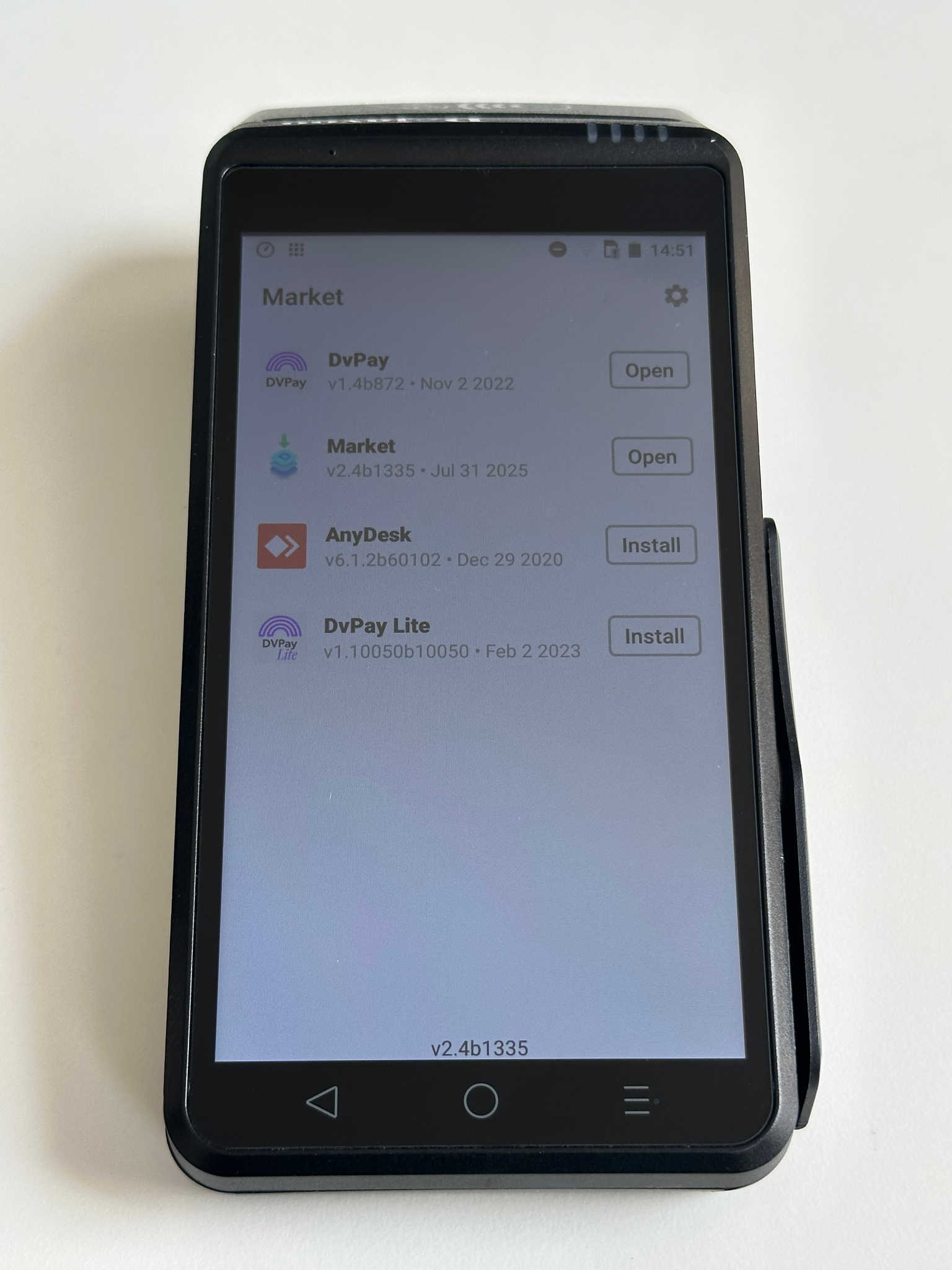
Select Market.
-
On the next screen, Market should start automatically updating. If it does not, select Install or Update, if available. If it just says Open, it is on the latest version.
-
Next, check DvPay. If there is an Update or Install button, select it and let it run.
-
Batch out.
-
The batch should prompt an auto-download. If not, or if no batch is open, perform a full download.
B) Update DVStore & DvPay (Aura) apps
-
Navigate to the terminal's home screen.
-
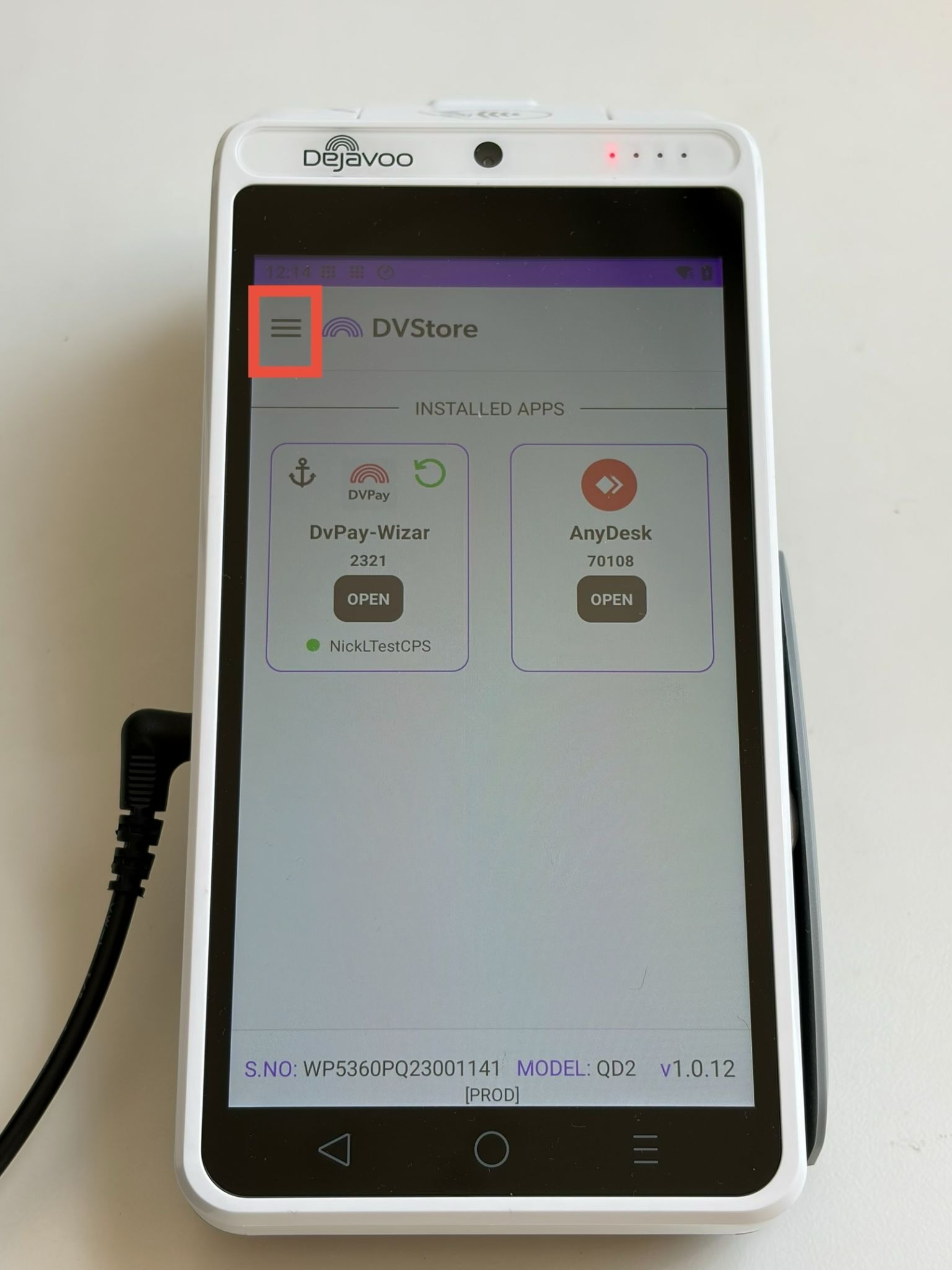
Select DVStore.
-
Select the menu (three lines) in the top left.
-
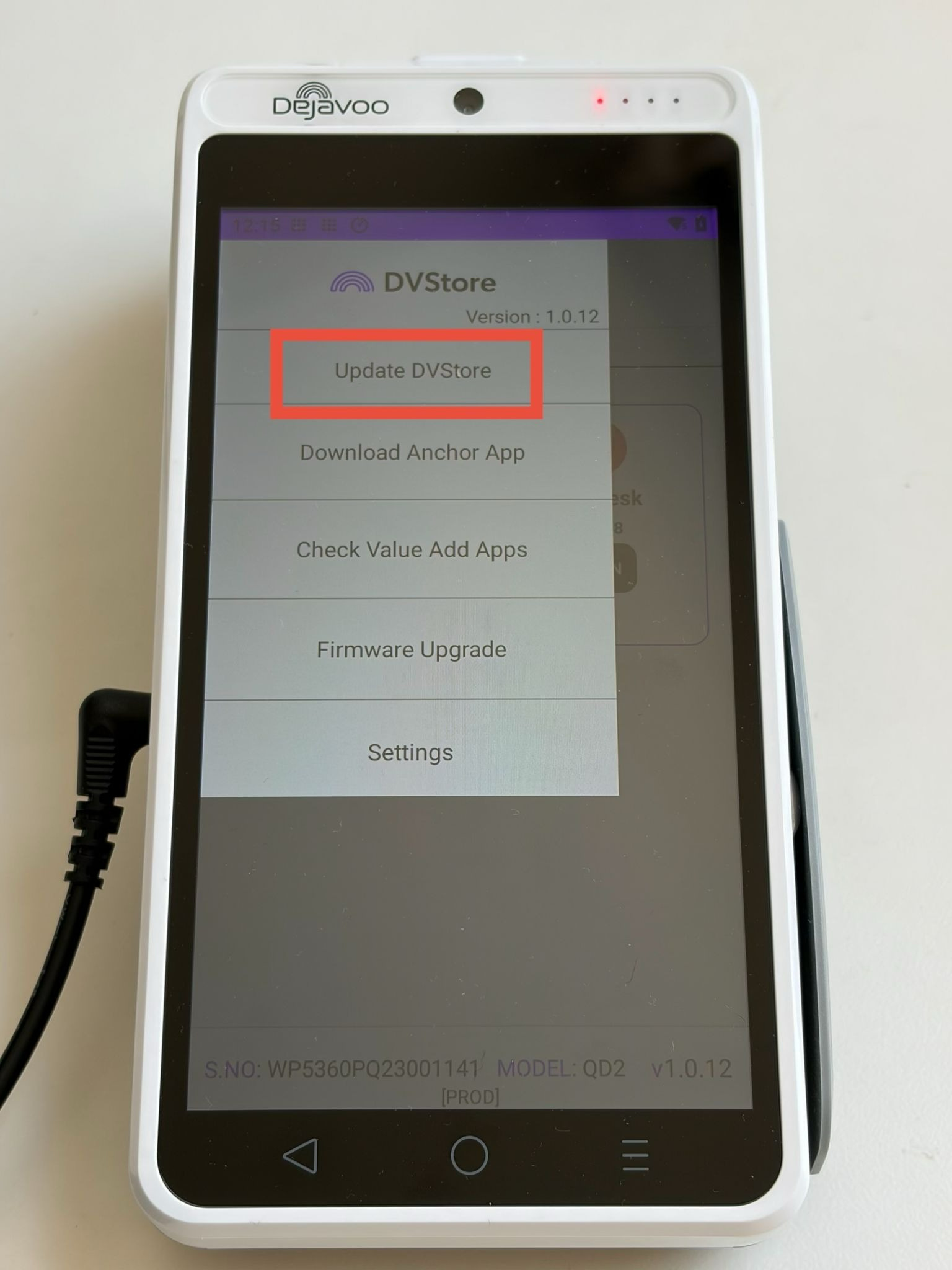
Select Update DVStore.
-
If the update fails, make sure the date/time is correct.
-
-
DvPay (Aura) updates automatically by updating DVStore.
-
Batch out.
-
The batch should prompt an auto-download. If not, or if no batch is open, perform a full download.
4. Perform a download (update terminal)
- Ensure that the batch is closed.
- Select the Aura app.
- Select the Menu icon (3 horizontal lines).
- Select Utility (if applicable, password = 1234).
- Select Software Download.
- Select Connect.
- Select Connection Type: Network.
- Select Full download. If a message appears that states "No updates required", reattempt and select Partial download.
- You will be prompted to confirm a TPN (Terminal Profile Number). This should prepopulate; select the green key to initiate the download.
- Apply Updates? Select Yes.
Level 3: Partner Support Needed
This section details issues that require Partner Support to resolve. If you encounter any of these issues, first refer to the section titled Submitting a Partner Support Ticket, and then contact Partner Support.
- Not connected to the SPIn Proxy server.
- SPIn Bypass (initiating transaction from terminal instead of through software integration).
- Update batch time.
- Error:
- Bad BIN / Host Disconnect
- Invalid Merchant
- Re-Enter
- Term ID
Level 4: Dejavoo Support Needed
If experiencing any of these hardware-specific issues, please contact Dejavoo Support directly at 877-358-6797, ext. 2. They will advise and, if necessary, refer you back to Stax if a new terminal is needed:
- Battery not charging.
- Factory reset.
- Terminal not powering on even after charging.
- Terminal not accepting a tapped transaction.
- Terminal missing applications such as DvPay or DvStore/Market.
Updated 4 days ago